Short answer: add DogeOS Chikyū Testnet to your wallet (chain ID 6281971, RPC https://rpc.testnet.dogeos.com/), claim free test DOGE from the official faucet, then make your first transaction. A daily GM on PingGM is the quickest one, and you can deploy a first contract without writing code or with Hardhat or Foundry. The bridge to Dogecoin testnet is optional.
This guide walks through every step, from an empty wallet to a first on-chain GM and a first contract deployment. It also covers the bridge, how DogeOS fees work, what is different from Ethereum for developers, and how to fix the most common errors.
We checked every step, limit and network value against the official DogeOS docs, the faucet, the portal and the RPC on October 19, 2026. Testnets change often. If something differs, trust the official page.
What Are DogeOS and Chikyū Testnet?
DogeOS describes itself as an application-layer rollup network for Dogecoin, "the app layer for dogecoin". It runs Ethereum-compatible smart contracts on an EVM-compatible zero-knowledge virtual machine (its portal calls it a "zkEVM"), and uses zero-knowledge proofs to show that its transactions are valid. DOGE is its native currency and pays for gas.
Chikyū is the name of the public DogeOS testnet. Like any testnet, it lets you try wallets, apps and contracts with free test DOGE that has no value. Because DogeOS is bytecode-compatible with the EVM, the tools you already know (MetaMask, Hardhat, Foundry, ethers.js) work once you point them at the DogeOS RPC.
There are two layers to keep apart:
- Dogecoin testnet (layer 1): the test version of the Dogecoin blockchain. It uses Dogecoin-style addresses and has its own explorer.
- DogeOS Chikyū Testnet (layer 2): the EVM layer on top. You use a normal 0x wallet address here, and this is where faucets, apps, GMs and contract deployments happen.
DogeOS Testnet at a Glance
- Network name: DogeOS Chikyū Testnet (PingGM shows it as "DogeOS Testnet")
- Chain ID: 6281971
- RPC URL: https://rpc.testnet.dogeos.com/
- Currency symbol: DOGE (18 decimals on the L2)
- L2 explorer: DogeOS L2Scan, https://dogeos-testnet.l2scan.co
- L1 explorer (Dogecoin testnet): https://doge-testnet-explorer.qed.me
- Faucet: https://faucet.testnet.dogeos.com
- Testnet portal (add network, bridge): https://portal.testnet.dogeos.com
- Gas price on October 19, 2026: about 0.016 gwei
Step 1: Set Up a Wallet and Add DogeOS Testnet
You need an EVM wallet. The DogeOS docs use MetaMask in their examples, and the bridge app also works with Coinbase Wallet and wallets that support WalletConnect. Use a separate wallet for testing if you can, and never share your seed phrase with any site.
There are three ways to add the network.
Option A: Use the DogeOS Testnet Portal
- Go to the DogeOS testnet portal.
- In the Configure your wallet for our DogeOS Chikyū Testnet network box, select Connect Wallet and choose your wallet.
- Approve the request to add DogeOS Chikyū Testnet. Your wallet imports the chain ID and RPC URL for you.
- In MetaMask, turn on Show test networks in the network menu if you can't see the new network.
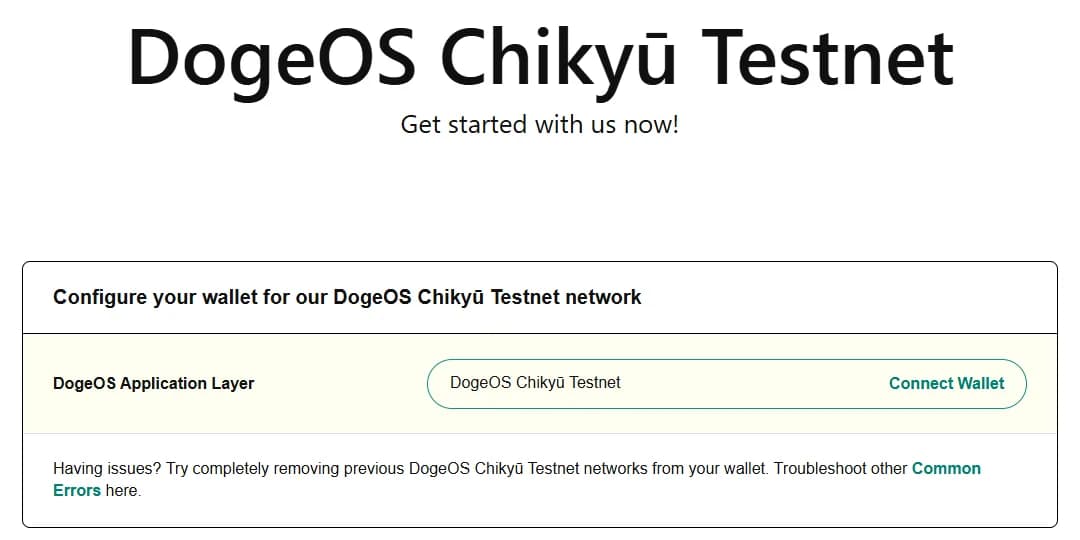
The portal's own tip is worth following: if adding the network fails, first remove any older DogeOS Chikyū Testnet entries from your wallet, then try again.
Option B: Add the Network by Hand
If the portal button doesn't work with your wallet, add a custom network with these values (in MetaMask: network menu, Add a custom network):
- Network name: DogeOS Chikyū Testnet
- RPC URL: https://rpc.testnet.dogeos.com/
- Chain ID: 6281971
- Currency symbol: DOGE
- Block explorer URL: https://dogeos-testnet.l2scan.co
Save it and switch to the new network.
Option C: Use PingGM's "Add Network to Your Wallet" Button
PingGM's DogeOS page lists the same network details with copy buttons, plus an Add network to your wallet button that asks your wallet to add DogeOS Testnet or switch to it. Connect your wallet, select the button and approve the request.
Once the network is in your wallet, you can add DogeOS Testnet and send your first GM as soon as you have test DOGE, which is the next step.
Step 2: Get Free Test DOGE From the Faucet
The official DogeOS faucet sends test DOGE directly to DogeOS Chikyū Testnet, so you don't need the bridge.
- Open the faucet.
- Choose Dogecoin (DOGE) in the token menu.
- Paste your 0x wallet address (or use Connect or Create New Wallet).
- Complete the reCAPTCHA and select Get 42.069 DOGE.
- Check your wallet. The DOGE usually arrives within seconds. You can also paste your address into DogeOS L2Scan to see the faucet transaction.
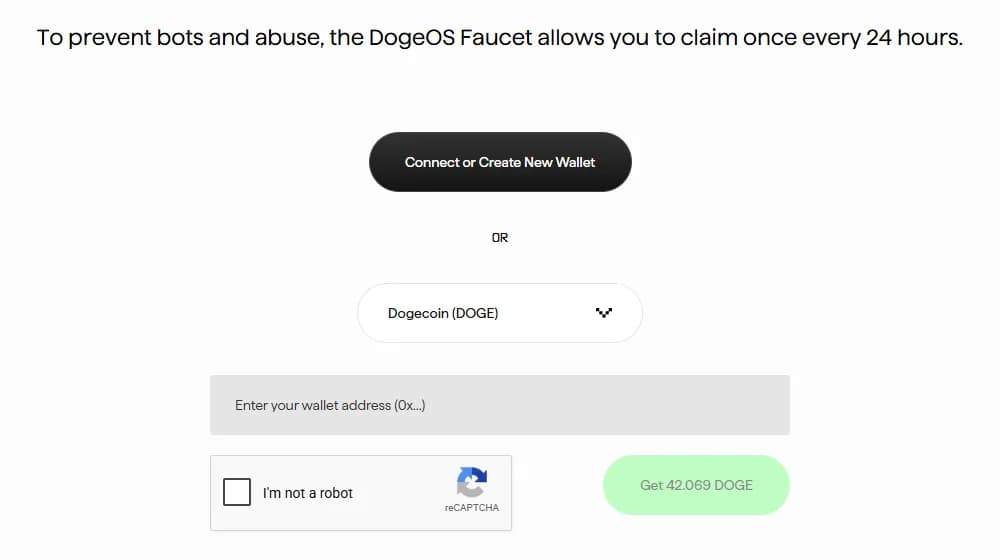
Faucet limits (October 19, 2026): 42.069 test DOGE per claim, and one claim every 24 hours. The token menu also offers test LBTC, WETH, USD1, USDC and USDT on DogeOS. 42 DOGE is plenty: the PingGM fees in Step 4 and Step 5 are a few DOGE, and gas costs a tiny fraction of one.
If the faucet refuses you:
- Cooldown: you claimed within the last 24 hours. Wait for the timer to pass.
- Faucet dry or failing: try again later, and check the DogeOS Discord or X account for faucet status.
- Wrong address: the DogeOS faucet needs your 0x (EVM) address, not a Dogecoin address.
A faucet only needs your public wallet address. No faucet, bridge or airdrop needs your seed phrase or private key. If a site asks for it, close the site.
Step 3 (Optional): Bridge Between Dogecoin Testnet and DogeOS
Most people can skip this step. The bridge is for testing how DOGE moves between the Dogecoin testnet (layer 1) and DogeOS (layer 2). The DogeOS docs call it a very early testnet implementation, so expect delays.
The bridge lives at portal.testnet.dogeos.com/bridge and has two tabs.
Deposit: Dogecoin Testnet to DogeOS
- Open the Deposit to DogeOS Chikyū Testnet tab.
- Enter your DogeOS (0x) address as the recipient.
- Copy the OP_RETURN data the bridge shows for that address.
- From a Dogecoin testnet wallet, send test DOGE to the Dogecoin address shown on the bridge page, with the OP_RETURN data attached. DogeOS provides a helper script for this in its dogecoin-tools repository. Without the exact OP_RETURN data, the deposit may be lost.
- After the Dogecoin transaction confirms, the bridge credits your DogeOS wallet. This can take up to 4 hours. You can follow the layer 1 side on the Dogecoin testnet explorer.
You need Dogecoin testnet DOGE for a deposit. The DogeOS docs point to a Dogecoin testnet faucet (4.2 DOGE per hour), but when we checked on October 19, 2026 that faucet was offline. If it is still down, use the DogeOS faucet from Step 2 instead and skip the deposit.
Withdraw: DogeOS to Dogecoin Testnet
- Open the Withdraw to DOGE L1 tab and switch your wallet to DogeOS Chikyū Testnet if asked.
- Enter the amount and your Dogecoin testnet address.
- The app shows a derived Ethereum address that the bridge uses internally. Don't send funds to it directly.
- Slide Withdraw funds and confirm in your wallet.
- The DOGE leaves your DogeOS balance when the transaction confirms and reaches your Dogecoin testnet wallet within about 4 hours.
Step 4: Send Your First Transaction (a Daily GM on PingGM)
The simplest first transaction is a daily on-chain GM. It shows you the full flow of a real DogeOS transaction: wallet connection, fees, signature, confirmation and the explorer.
- Open PingGM's DogeOS Testnet page (linked at the end of Step 1) and connect your wallet.
- Find the DogeOS Testnet GM card, the one on the left. It has a Faucet link, a Testnet tag and a NEW ribbon. The card on the right is for deploying a contract (Step 5).
- Select GM on DogeOS Testnet. If your wallet is on another network, approve the switch to DogeOS Testnet.
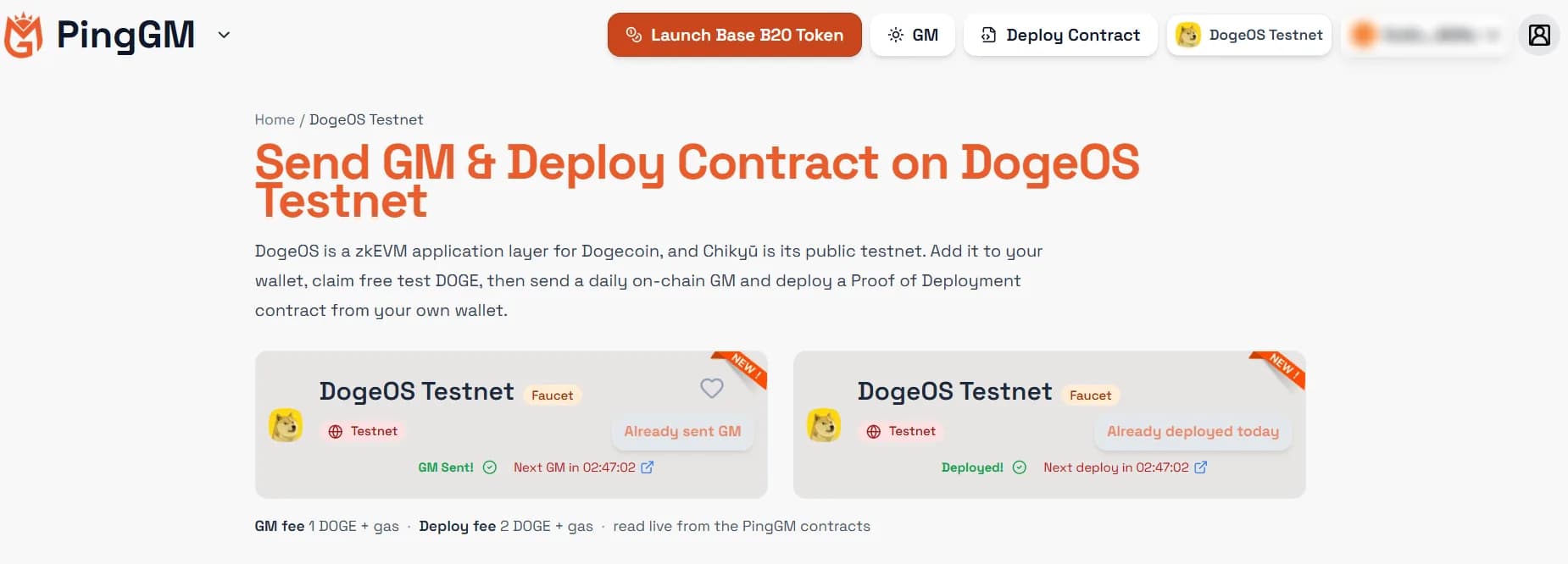
The screenshot shows the page after a GM and a deployment: both buttons now read Already sent GM and Already deployed today, with a countdown to the next one. The line under the cards shows the current PingGM fees, read live from the PingGM contracts.
Confirm in your wallet. The total is the PingGM fee plus gas, and gas on DogeOS includes a data and finality fee (see How Fees Work on DogeOS). The PingGM fee is shown on the page, right under the cards, and in your wallet before you sign. On October 19, 2026 it was 1 test DOGE for a GM, which appears as the transaction's value.
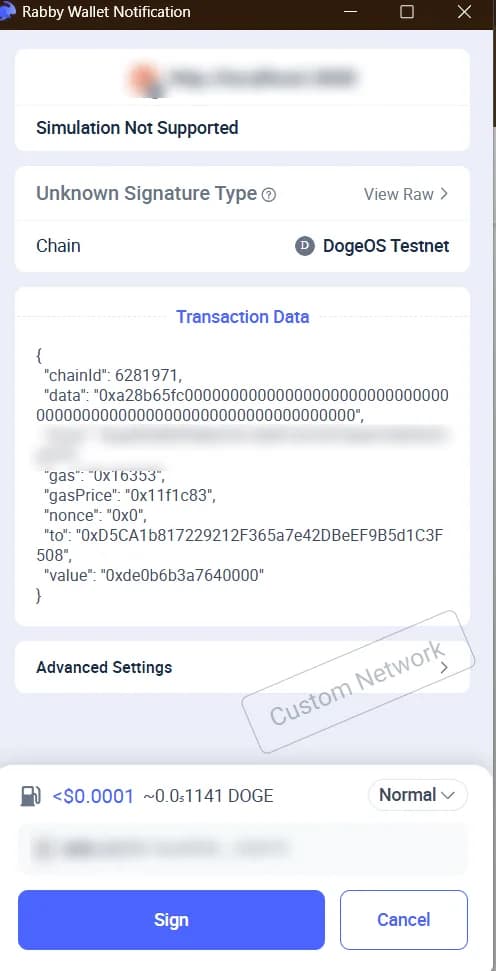
Don't be put off by the warnings in some wallets. Rabby, for example, shows Simulation Not Supported, Unknown Signature Type and a Custom Network stamp for DogeOS Testnet, because it can't simulate transactions on this network. That's normal for a custom testnet. Check that the chain is DogeOS Testnet (chain ID 6281971) and that the value matches the PingGM fee.
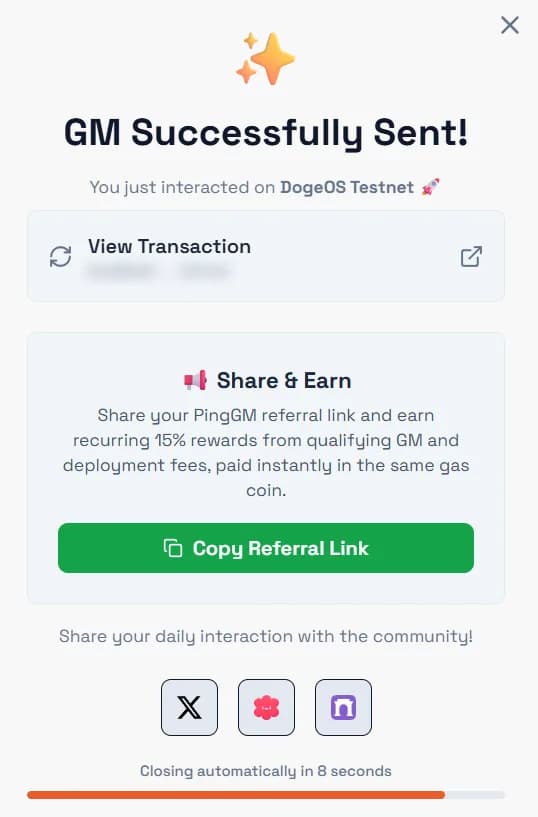
Approve and check the success dialog. A GM Successfully Sent! dialog confirms it and links to the transaction on DogeOS L2Scan (View Transaction).
Check your GM on L2Scan. Open the link to see your GM on-chain. L2Scan shows the status (L2 Confirmed once it's included on DogeOS), the sendPing call to the PingGM contract, the 1 DOGE value and the fee, split into the L1 Data Fee and the Execution Fee.
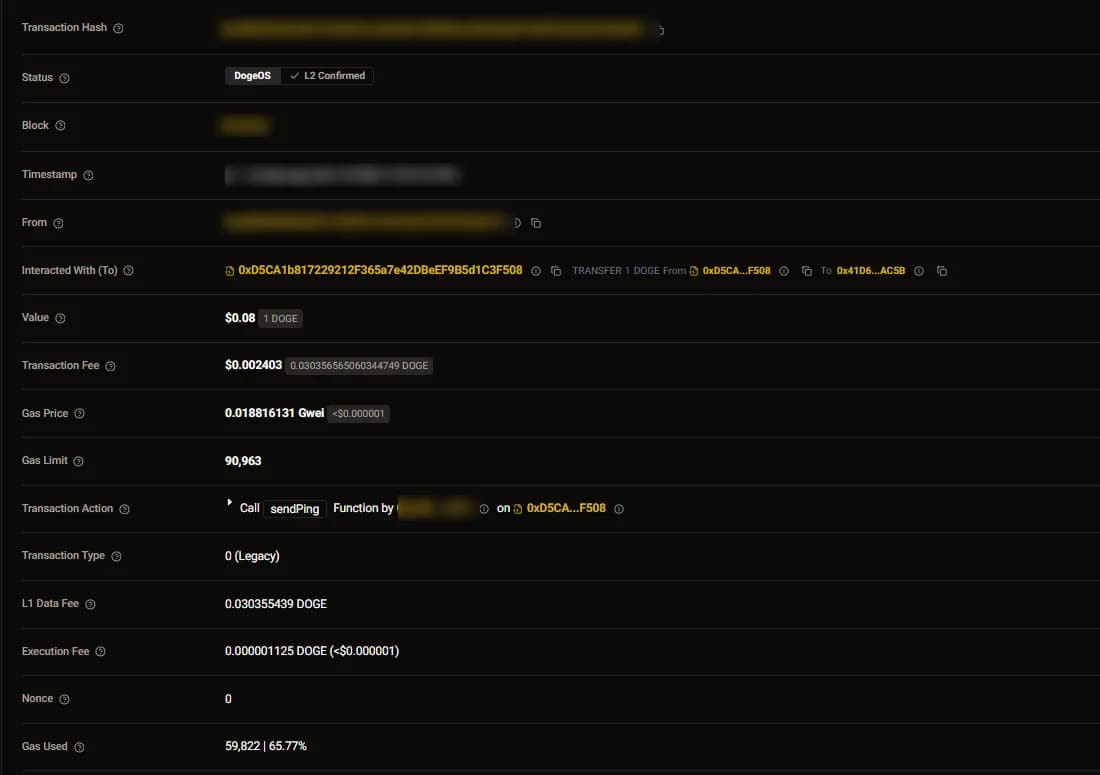
L2Scan shows a dollar amount next to DOGE values (for example $0.08 for 1 DOGE). That's the price of real Dogecoin. Your test DOGE is still worth nothing.
You can send one GM per wallet per UTC day. The limit resets for everyone at 00:00 UTC. PingGM is non-custodial: you sign every transaction from your own wallet, and PingGM never holds your funds or keys.
Or Send a Plain DOGE Transfer
To test a simple transfer instead, open your wallet on DogeOS Chikyū Testnet, select Send, enter a recipient address, choose DOGE and an amount, then confirm. The transaction appears in your wallet's Activity tab and on L2Scan.
Step 5: Deploy Your First Smart Contract
The No-Code Way: PingGM's Proof of Deployment Card
PingGM lets you deploy a contract on DogeOS Testnet without writing code:
- On the same PingGM page, find the Proof of Deployment card, the one on the right.
- Select Deploy Contract on DogeOS Testnet, or go straight to the PingGM deployer for DogeOS Testnet.
- Check the fee in your wallet (PingGM fee plus gas; on October 19, 2026 the PingGM fee was 2 test DOGE) and approve.
- A Contract Deployed! dialog confirms it and links to the deployment transaction on DogeOS L2Scan (View Transaction).
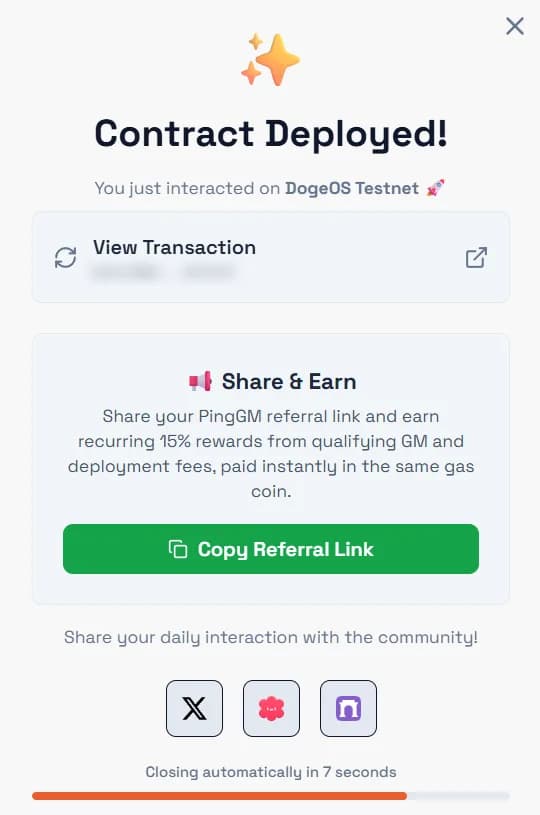
On L2Scan, the deployment shows as a deploy call with a 2 DOGE value. You can deploy once per wallet per UTC day. It's a quick way to make a real contract deployment on DogeOS without installing any tools. For how PingGM's deployer works on other networks too, see our guide to deploying smart contracts across multiple blockchains with PingGM.
The Developer Way: Hardhat or Foundry
DogeOS is EVM bytecode-compatible, so normal Solidity projects deploy with a few settings.
Compiler settings matter. The DogeOS docs say to target the prague EVM version and not to use Solidity older than 0.8.30. They also list 0.8.30 as the latest supported version, so compile with Solidity 0.8.30 exactly.
Hardhat: add the compiler settings and a DogeOS network to your hardhat.config.ts config object:
solidity: {
  version: "0.8.30",
  settings: { evmVersion: "prague" },
},
networks: {
  dogeosTestnet: {
    url: "https://rpc.testnet.dogeos.com/",
    chainId: 6281971,
    accounts: process.env.PRIVATE_KEY ? [process.env.PRIVATE_KEY] : [],
  },
},
Then deploy with your usual script or Ignition module, for example npx hardhat ignition deploy ignition/modules/Counter.ts --network dogeosTestnet. DogeOS keeps a ready-made Hardhat and Foundry example in its contract-deployment-guide repository.
Foundry: set the compiler in foundry.toml:
[profile.default]
solc_version = "0.8.30"
evm_version = "prague"
Then deploy, entering your private key when prompted:
forge create contracts/Counter.sol:Counter --rpc-url https://rpc.testnet.dogeos.com --interactive
Fund the deploying wallet from the faucet first. Keep private keys in environment variables or a keystore, never in your code or repository.
Verify Your Contract on DogeOS L2Scan
DogeOS L2Scan accepts verification through its API.
Hardhat: add L2Scan as a custom chain in the etherscan section of your config:
etherscan: {
  customChains: [
    {
      network: "dogeosTestnet",
      chainId: 6281971,
      urls: {
        apiURL: "https://dogeos-testnet.l2scan.co/api",
        browserURL: "https://dogeos-testnet.l2scan.co/",
      },
    },
  ],
},
Then run npx hardhat verify --network dogeosTestnet <contract address> <constructor arguments>, with the constructor arguments separated by spaces.
Foundry:
forge verify-contract <contract address> <contract name> \
  --rpc-url https://rpc.testnet.dogeos.com --chain-id 6281971 --watch \
  --verifier blockscout --verifier-url https://dogeos-testnet.l2scan.co/api/ \
  --skip-is-verified-check
If the constructor takes arguments, add them ABI-encoded with --constructor-args $(cast abi-encode "constructor(uint256,uint256)" 0 7), using your own types and values.
What's Different From Ethereum
Most contracts work unchanged, but check these differences from the DogeOS docs before you deploy anything that relies on them:
- SELFDESTRUCT is disabled. A transaction that hits it reverts.
- No on-chain randomness from the block.
PREVRANDAOandDIFFICULTYreturn 0, so never use them as a random source. - No blob opcodes.
BLOBHASHandBLOBBASEFEE(EIP-4844) aren't available yet, and EIP-4788 (beacon block root) isn't supported. - COINBASE returns the address of the fee vault contract, not a block producer.
- Precompiles: RIPEMD-160 (
0x03), blake2f (0x09) and point evaluation (0x0a) revert.modexponly accepts inputs up to 32 bytes.ecRecover,ecAdd,ecMul,ecPairingandidentitywork normally. - Native DOGE is also an ERC-20. It has an ERC-20 interface at
0x530000000000000000000000000000000000d09e, so you don't need to wrap it the way ETH is wrapped into WETH.balanceOfis the same money as the native balance, so never add the two together. Gas fees and plain DOGE transfers don't emitTransferevents. A separate wrapped token (WDOGE) also exists, but the docs recommend native DOGE for new integrations. - Reorgs and finality: the maximum reorg depth is 17 blocks. Full finality comes after the proofs are settled on Dogecoin.
- Transaction ordering: the sequencer usually orders by tip, but at quiet times it is first come, first served.
How Fees Work on DogeOS
Every DogeOS transaction pays two parts, both in DOGE:
- Execution fee: gas used multiplied by the gas price, just like on Ethereum. On October 19, 2026 the gas price was about 0.016 gwei.
- Data and finality fee: a share of the cost of posting transaction data to Ethereum for data availability and finalizing the batch on Dogecoin. It depends on the size of your transaction data and current Ethereum blob and Dogecoin fee rates.
The data and finality fee comes from the L1GasPriceOracle contract at 0x5300000000000000000000000000000000000002 (the same design Scroll uses). Developers can call getL1Fee(bytes) with a signed, RLP-encoded transaction to estimate it. Wallets that assume Ethereum fee rules may show only the execution fee.
You can see this in practice. For our test GM on October 19, 2026, the wallet (Rabby) estimated the network fee at about 0.0000011 DOGE. L2Scan then recorded a total fee of about 0.0304 DOGE: an execution fee of 0.000001125 DOGE and an L1 data fee of 0.030355 DOGE. The data fee was almost the whole cost, and the wallet's estimate didn't include it.
That's why you should keep a small DOGE buffer above the amount you plan to spend. If your balance covers the PingGM fee and the wallet's gas estimate but not the data fee, the transaction fails with an insufficient-funds error. With 42 DOGE from the faucet this is rarely a problem, but it matters if you spend your balance down.
Common DogeOS Testnet Errors and Fixes
- "Incorrect nonce" in MetaMask: your wallet's saved nonce doesn't match the network, usually after a stuck transaction. Reset the account for DogeOS Chikyū Testnet in MetaMask (Settings, Advanced, Reset account). Your funds aren't affected. Removing and re-adding the network doesn't fix this.
- Nothing happens when you confirm a transaction: if there's no error, it's most likely the same nonce problem. Reset the account as above.
- L2Scan shows "Internal server error": open the explorer in a private window, or delete the
_explorer_keycookie (or all cookies) for the site. - Wrong network: your DOGE balance shows 0 or the app asks you to switch. Check that your wallet is on chain ID 6281971.
- Wallet won't switch or add the network: remove any older DogeOS Chikyū Testnet entries from your wallet, then add it again from the portal or by hand.
- Faucet cooldown or empty faucet: one claim per 24 hours. Wait, or check the DogeOS Discord for status.
- Insufficient funds, even though you have enough for the fee: the data and finality fee needs a little extra DOGE. Claim more from the faucet or send a smaller amount.
- Bridge transfer not arrived: each direction can take up to 4 hours. Check the Dogecoin testnet explorer for the layer 1 side and L2Scan for the DogeOS side before asking for help.
- PingGM shows "Already sent GM" or "Already deployed today": you've used today's GM or deployment for that wallet. The card shows a countdown, and both limits reset at 00:00 UTC.
- Wallet shows "Simulation Not Supported" or a custom-network warning: normal for DogeOS Testnet in wallets such as Rabby. Check the chain ID (6281971) and the amount, then sign.
Ready? Send Your First GM on DogeOS
You now have everything you need: DogeOS Chikyū Testnet in your wallet, free test DOGE from the faucet, and an idea of how fees and contracts work on the network. The fastest way to put it to use is to send your first GM on DogeOS Testnet, then deploy a Proof of Deployment contract from the same page. Each one is a single wallet confirmation and leaves a real transaction on DogeOS L2Scan.
DogeOS is one of many networks on PingGM. You can also see every network PingGM supports and send a daily GM on each of them.
Sources Checked
- DogeOS Overview — DogeOS Docs
- Testnet User Guide — DogeOS Docs
- Setup — DogeOS Docs
- Faucet — DogeOS Docs
- Bridge — DogeOS Docs
- Transfer Tokens — DogeOS Docs
- Common Errors — DogeOS Docs
- Building on DogeOS — DogeOS Docs
- Developer Quickstart — DogeOS Docs
- Contract Deployment Tutorial — DogeOS Docs
- Verifying Smart Contracts — DogeOS Docs
- Ethereum and DogeOS Differences — DogeOS Docs
- Transaction Fees on DogeOS — DogeOS Docs
- Native DOGE as an ERC-20 — DogeOS Docs
- DogeOS Testnet Portal
- DogeOS Faucet
- DogeOS L2Scan
- DogeOS on X and DogeOS Discord