Short answer: to upgrade Windows 11 Home to Pro, go to Start > Settings > System > Activation, select Change next to Change product key, and enter a 25-character Windows 11 Pro product key. Windows upgrades to Pro in place and restarts. You do not need to reinstall Windows, and your files and apps stay where they are. No key? You can buy the upgrade in the Microsoft Store from the same page.
This guide covers both methods, what the upgrade costs, whether you can do it from Command Prompt or without a Microsoft account, and how to fix errors such as 0xC004F050 and 0x803FA067.
Home to Pro at a Glance
- With a Pro key: Settings > System > Activation > Change product key. No Microsoft account needed.
- Without a key: expand Upgrade your edition of Windows and select Open Store to buy the upgrade.
- No reinstall: Windows changes edition and restarts. Files and apps stay.
- Command Prompt: Microsoft does not list it as a supported method for Home to Pro. Use Settings.
- No way back by key: returning to Home later needs a clean install.
Before You Upgrade: Four Quick Checks
- Check your edition and activation status. Open Settings > System > Activation. It shows your edition (Windows 11 Home) and whether Windows is active. Microsoft's steps apply to an activated copy of Windows 11 Home. If yours is not activated, activate Home first.
- Use an administrator account. Windows may show a User Account Control prompt that asks for an administrator's password.
- Leave S mode first, if you are in it. If the Activation page says your PC runs Windows 11 in S mode, switch out of S mode before upgrading. Switching is free but one-way: you cannot turn S mode back on. See Microsoft's S mode FAQ for the steps.
- Back up your files. The upgrade does not reinstall Windows, but a backup is good practice before any system change.
Method 1: Upgrade With a Windows 11 Pro Product Key
Use this method if you already have a Windows 11 Pro product key.
- Select Start > Settings > System > Activation. Shortcut: press Windows + R, type ms-settings:activation and press Enter.
- Next to Change product key, select Change.
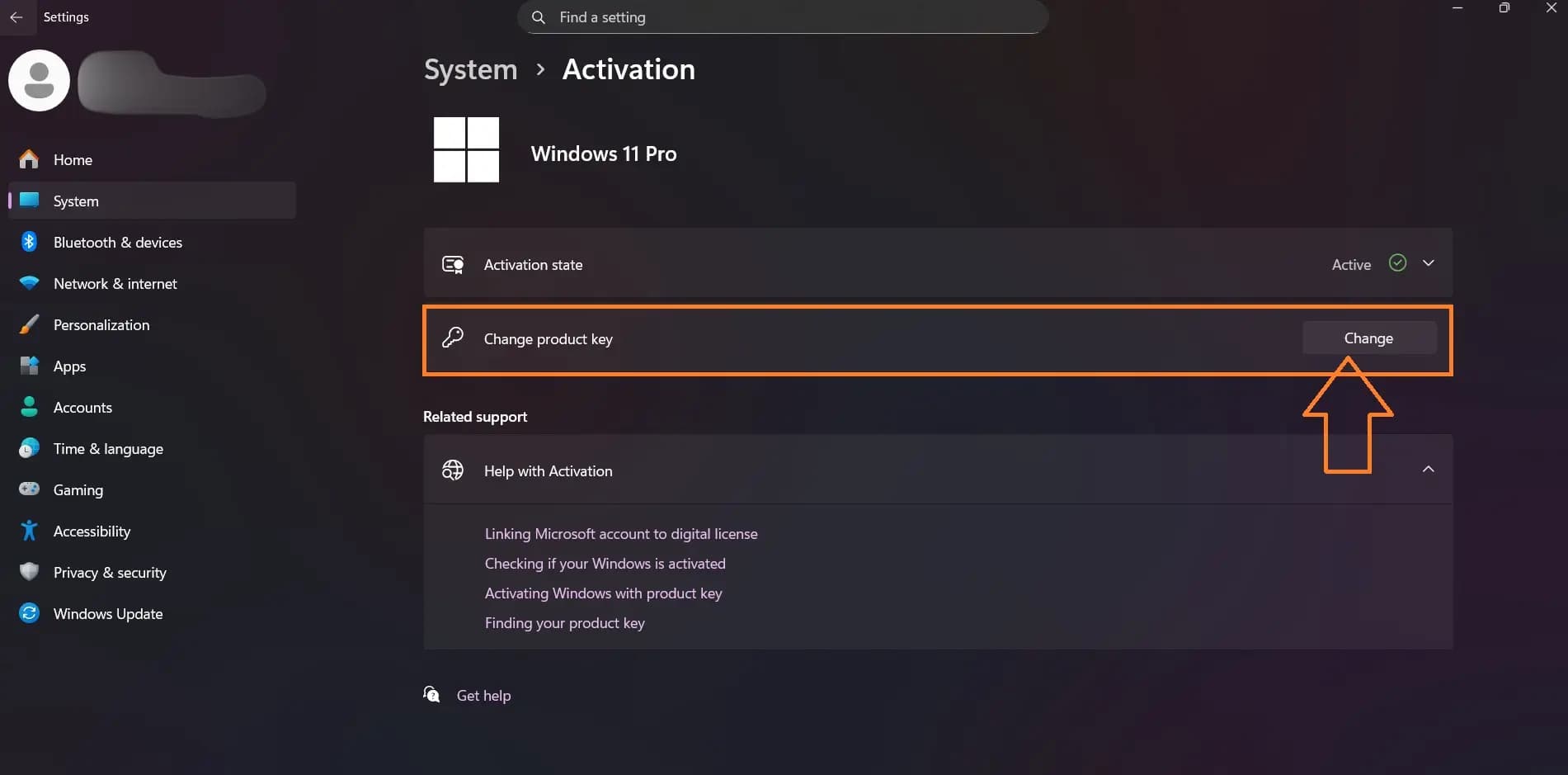
The Activation page. On a Home PC, the edition line reads Windows 11 Home.
- Enter your 25-character Windows 11 Pro product key and select Next.
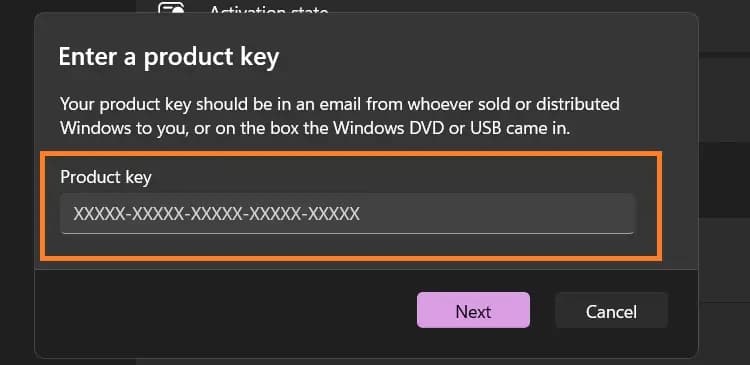
- Follow the prompts to start the upgrade. Windows installs the Pro edition and restarts. This can take a few minutes.
- After the restart, go back to Settings > System > Activation. It should show Windows 11 Pro and an active status.
A Windows 11 Home key will not upgrade you to Pro. The key must be for the Pro edition.
Tip: once you are on Pro, link your license to your Microsoft account if you use one. It makes reactivation easier after a hardware change. Our Windows 11 Pro activation guide shows how.
Method 2: Upgrade Without a Key in the Microsoft Store
Use this method if you do not have a Pro key.
- Select Start > Settings > System > Activation.
- Expand Upgrade your edition of Windows.
- Next to Upgrade in the Microsoft app, select Open Store.
- Sign in with your Microsoft account and follow the prompts to buy the upgrade.
- When prompted, install the Pro edition and restart your PC.
A Store upgrade gives you a digital license instead of a product key, so there is no key to keep. The purchase appears in your Microsoft account's order history.
How Much Does the Upgrade Cost?
It depends on which method you use:
- Microsoft Store upgrade: the Store shows the price for your region before you pay. For comparison, a full Windows 11 Pro license is $199.99 on Microsoft's US store.
- Product key: if you already have a Windows 11 Pro key, entering it costs nothing extra. If you need to buy one, prices vary by seller and license type.
If you buy a key, check what kind of license it is. Retail licenses can move to a new PC later. OEM licenses cost less, are intended for new PCs from a manufacturer or system builder, and stay with the first PC they activate on. Our Windows 11 Pro OEM vs Retail guide explains the difference, and you can view the Windows 11 Pro OEM key on PingGM Store. Prefer to pay with crypto? See how to buy Windows 11 Pro with crypto.
PingGM Blog is published by PingGM, which also runs PingGM Store, where Windows 11 Pro keys are sold.
Can You Upgrade to Pro for Free?
Only if your PC already has a Pro license. A common case: the PC ran an activated copy of Windows 11 Pro before, then Windows 11 Home was installed by mistake. Windows may then hold a digital license for Pro. Open Settings > System > Activation and select Troubleshoot. Microsoft says the troubleshooter can find a valid digital license for a different edition and show you how to install it.
Otherwise there is no free way. Avoid "free Pro key" lists, activation scripts and KMS tools from forums or video tutorials. They are not a genuine license, can stop working at any time, and some install unsafe software.
Can You Upgrade Using Command Prompt (cmd)?
Many guides suggest changepk.exe or slmgr for this. Microsoft's edition upgrade documentation lists four methods (MDM, provisioning package, command-line tool and manually entering a product key) and marks only manual product key entry as supported for Home to Pro. The command-line route is marked as not supported for that path.
Use Settings > System > Activation > Change product key instead. It is the method Microsoft supports, and it works the same way on every Windows 11 Home PC.
Can You Upgrade Without a Microsoft Account?
Yes, with a product key. Microsoft's instructions for the product key method only require an administrator account. You need a Microsoft account if you buy the upgrade in the Microsoft Store, because the digital license is tied to that account.
Fix Home to Pro Upgrade Errors
0xC004F050 or 0x803FA067: "Unable to upgrade your edition"
Microsoft groups these two codes together: the product key you entered cannot be used to activate this copy of Windows. Microsoft's advice is to enter a different product key or buy a new one. Before you do, check these causes in order:
- It is not a Pro key. A Home key, an Enterprise key or a volume license key will not upgrade Home to Pro.
- A typo. Re-enter the key carefully, or copy and paste it from your purchase email.
- The key is already in use. A key is for one PC at a time. If it is active on another device, you need a separate key for this PC.
- Windows 11 Home is not activated. Microsoft's steps assume an activated copy of Home. Activate it first, then try again.
- Pending updates. Install everything Windows Update offers, restart and try again.
- Date, time or connection. Wrong date and time settings or a blocked connection can stop activation. Check them in Settings > Time & language and try again.
If the key still fails, contact the seller of the key, or Microsoft support if you bought it from Microsoft.
You may see forum advice to enter a generic Pro key while offline, then your own key. Microsoft's support pages do not document this. A generic key does not activate Windows, and if your own key then fails, you are left on unactivated Pro. Microsoft does not support going back to Home without a clean install.
Other Errors You May See
- 0xC004C003: the key cannot be used on this PC. Microsoft says product keys are assigned for use on a single device, so you need a key that is unique to this PC. Contact the seller.
- 0xC004C008: the key has already been used on another PC. Each PC needs its own key.
- 0xC004F00F or 0xC004F074: you entered an Enterprise key, for example one from a work or school license. Enter a key that matches the edition, which here is Windows 11 Pro.
- 0x80072F8F: Windows cannot reach the activation service, often because the date and time are wrong. Correct them and check your internet connection.
Bought your key from PingGM Store? If the upgrade still fails, contact PingGM Store support ([email protected], replies usually within 24 hours) with the error code. The Store's Refund & Return Policy explains how key issues are handled.
Can You Go Back to Windows 11 Home?
Not by changing the product key. Microsoft's documentation lists Pro to Home as a downgrade path that is not supported, so going back to Home requires a clean install of Windows 11 Home. Back up your files before you do that.
What Windows 11 Pro Adds
Pro includes everything in Home. Microsoft highlights these extras for people upgrading:
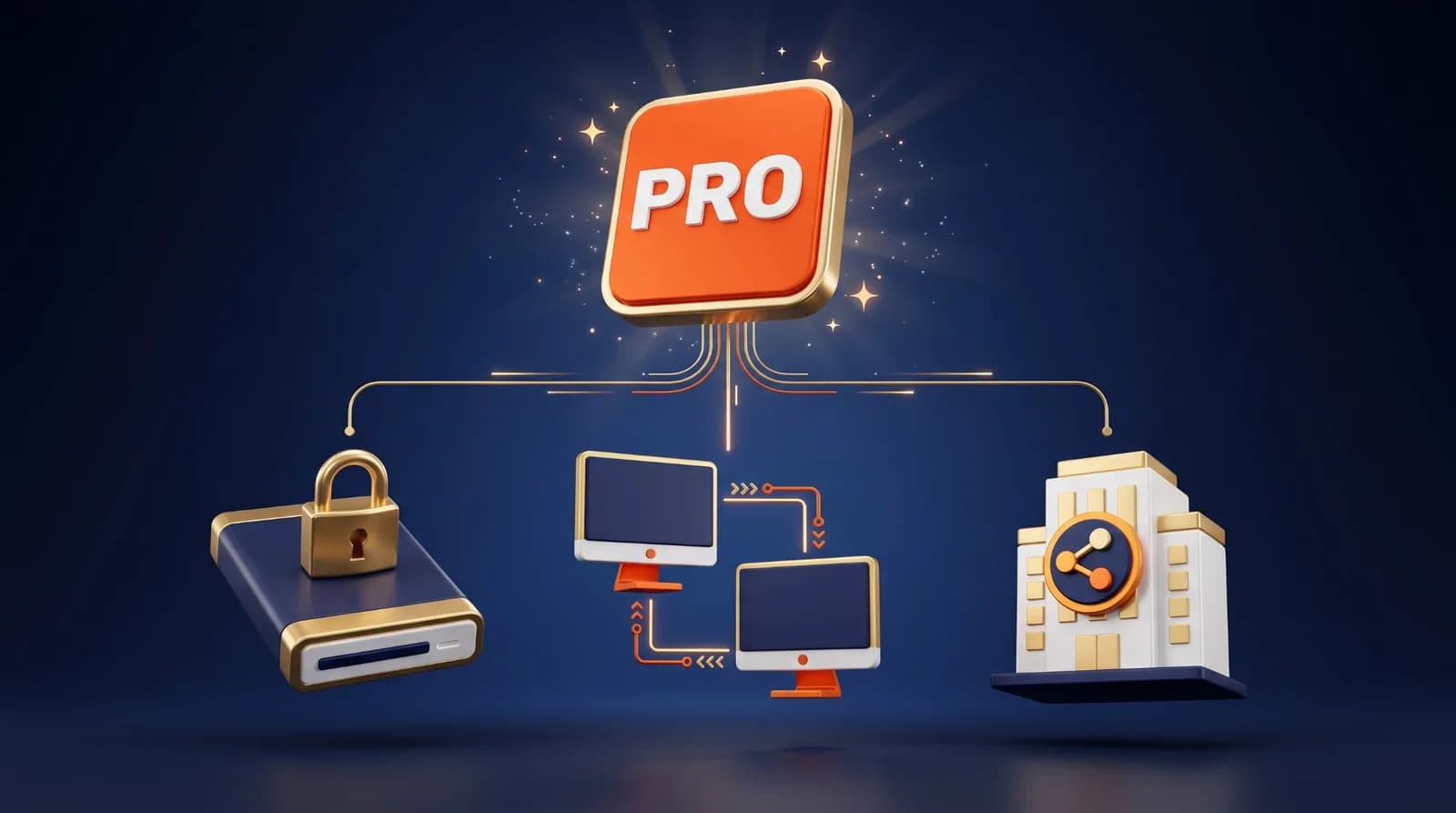
- BitLocker Drive Encryption, to encrypt your drives.
- Remote Desktop, so you can connect to this PC from another device.
- Domain and Microsoft Entra ID join, for work and school networks.
If you are not sure you need any of these, check before you pay. Windows 11 Home already includes core security such as Windows Security and Windows Hello. Our Windows 11 Home vs Pro comparison covers every difference and who actually needs Pro.
Final Thoughts
Upgrading Windows 11 Home to Pro takes a few minutes and does not touch your files. Enter a Pro product key under Settings > System > Activation, or buy the upgrade in the Microsoft Store from the same page. If you see 0xC004F050 or 0x803FA067, check the key type, typos and whether the key is already in use before trying anything else.
Sources Checked
- Upgrade Windows Home to Windows Pro — Microsoft Support
- Windows edition upgrade — Microsoft Learn
- Get help with Windows activation errors — Microsoft Support
- Find your Windows product key — Microsoft Support
- Windows 10 and Windows 11 in S mode FAQ — Microsoft Support
- Buy Windows 11 Pro — Microsoft Store (price checked October 14, 2026)
- Win 11 Home to Pro Upgrade (community thread on 0xC004F050) — Microsoft Q&A