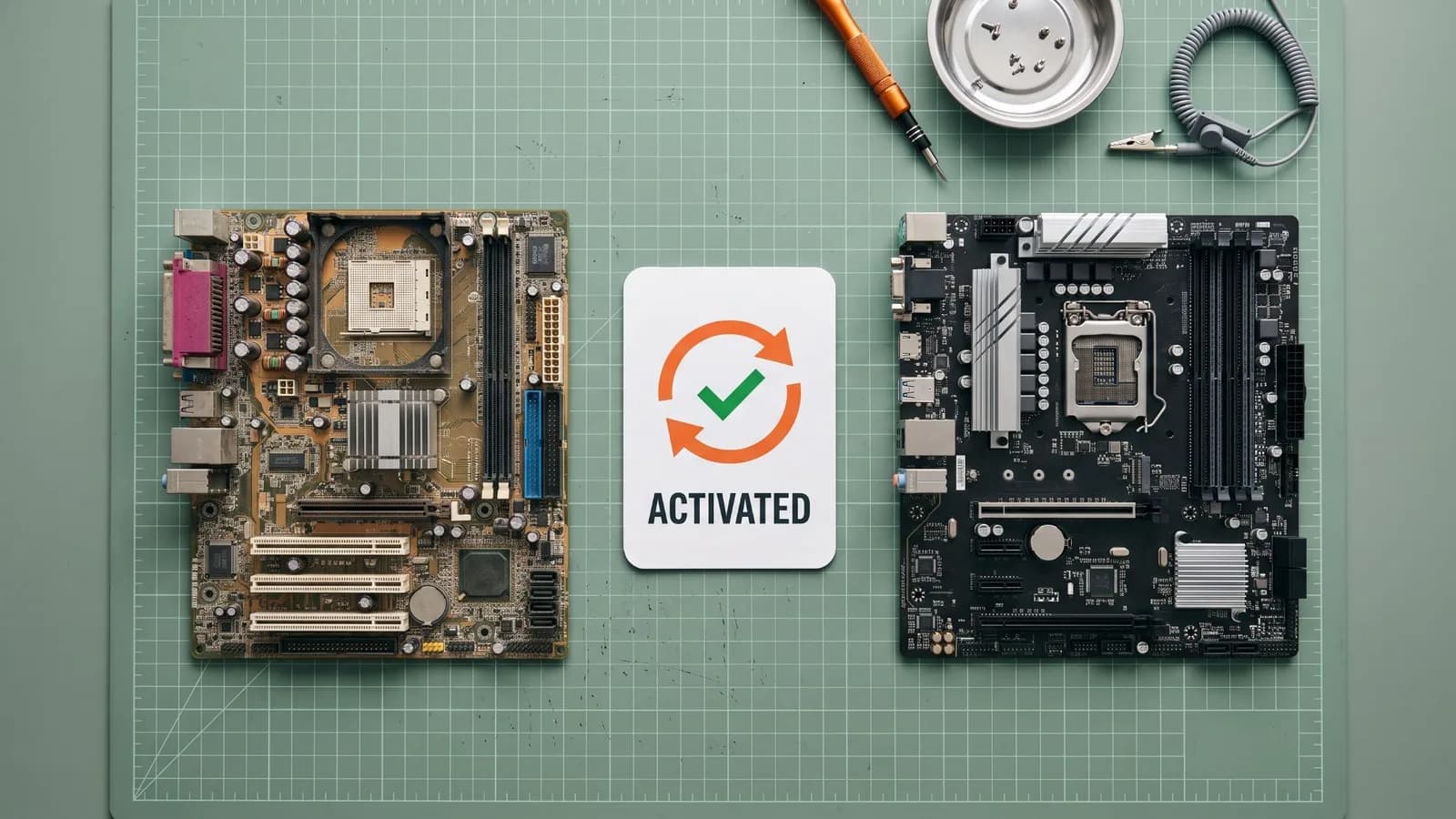
Short answer: if Windows 11 says it is not activated after you replaced the motherboard or updated the BIOS, go to Settings > System > Activation, select Troubleshoot and choose I changed hardware on this device recently. That works if your digital license was linked to your Microsoft account before the change. If you activated with a product key, enter the same key again, and if online activation still fails, try phone activation. An OEM license generally stays with the original motherboard, so a motherboard upgrade can mean you need a new license.
This guide covers each case: a new motherboard, a BIOS update, a repair, other part upgrades and a reinstall. It also explains which error codes you may see and when you need a new license.
Reactivation at a Glance
- Digital license linked to a Microsoft account: Activation troubleshooter > I changed hardware on this device recently.
- Product key: re-enter the same key under Change product key. Phone activation (SLUI 04) is the fallback.
- Repaired by the manufacturer: it should reactivate on its own. If not, use the key on the COA card or contact the manufacturer.
- OEM license and a motherboard upgrade: Microsoft's OEM rules treat that as a new PC, so the license does not move with it.
- Edition must match: Home reactivates as Home, Pro as Pro.
Why Windows 11 Deactivates After a Hardware Change
Microsoft associates a Windows license with your device's hardware. After a significant change, Windows may no longer find a license that matches the device, so the Activation page shows Windows as not activated. Microsoft's example of a significant change is replacing the motherboard. It does not publish a full list of which other parts count.
Which Error Code Are You Seeing?
Open Settings > System > Activation and note the code. These are the ones Microsoft links to hardware changes:
- 0xC004F211: Windows reports that the hardware of your device has changed. Use the fixes below.
- 0xC004F213: Windows reports that no product key was found on the device. Microsoft gives the same fixes as for 0xC004F211.
- 0x803F7001 or 0x800704CF: no valid Windows license was found for this device. Enter a valid product key, or run the Activation troubleshooter if you recently made a major hardware change.
- 0xC004C008, 0xC004C770 or 0x803FA071: the key has already been used on another device, or on more devices than the license allows. After a substantial hardware change with a valid key, Microsoft suggests phone activation (Fix 3).
- 0xC004C003: the key was used, or someone tried to use it, on more than one device, so it was marked as not valid. If your PC was just repaired, see the repair section below.
First, Check Which License You Have
The right fix depends on how Windows was activated:
- Digital license: you upgraded for free from an activated earlier version of Windows, or bought Windows in the Microsoft Store app. If it was linked, the Activation page said Windows is activated with a digital license linked to your Microsoft account.
- Product key: you entered a 25-character key, for example from a retail box, an online seller or a Certificate of Authenticity (COA).
- Preinstalled by the manufacturer: the PC came with Windows. This is an OEM license, and the manufacturer supports it.
Not sure? Open Command Prompt and run slmgr /dli. It shows a short license summary without needing administrator rights. Look for RETAIL, OEM or VOLUME in the Description line.
Fix 1: Use the Activation Troubleshooter (Digital License)
This works if you linked your Microsoft account to your digital license before the hardware change.
- Sign in to Windows with an administrator account.
- Go to Start > Settings > System > Activation and select Troubleshoot. It reports that Windows can't be activated on your device.
- Select I changed hardware on this device recently, then Next.
- Sign in with the Microsoft account linked to the license.
- In the list of devices, check This is the device I'm using right now.
- Select Activate.
If your device is not in the list, check that you signed in with the account that holds the license. The Troubleshoot option only appears while Windows is not activated, and the edition must match: a Pro license reactivates Windows 11 Pro, not Home. If Windows 11 Home was installed by mistake on a PC with a Pro license, see our Home to Pro upgrade guide.
Fix 2: Re-Enter Your Product Key
If you activated Windows with a product key, enter the same key again:
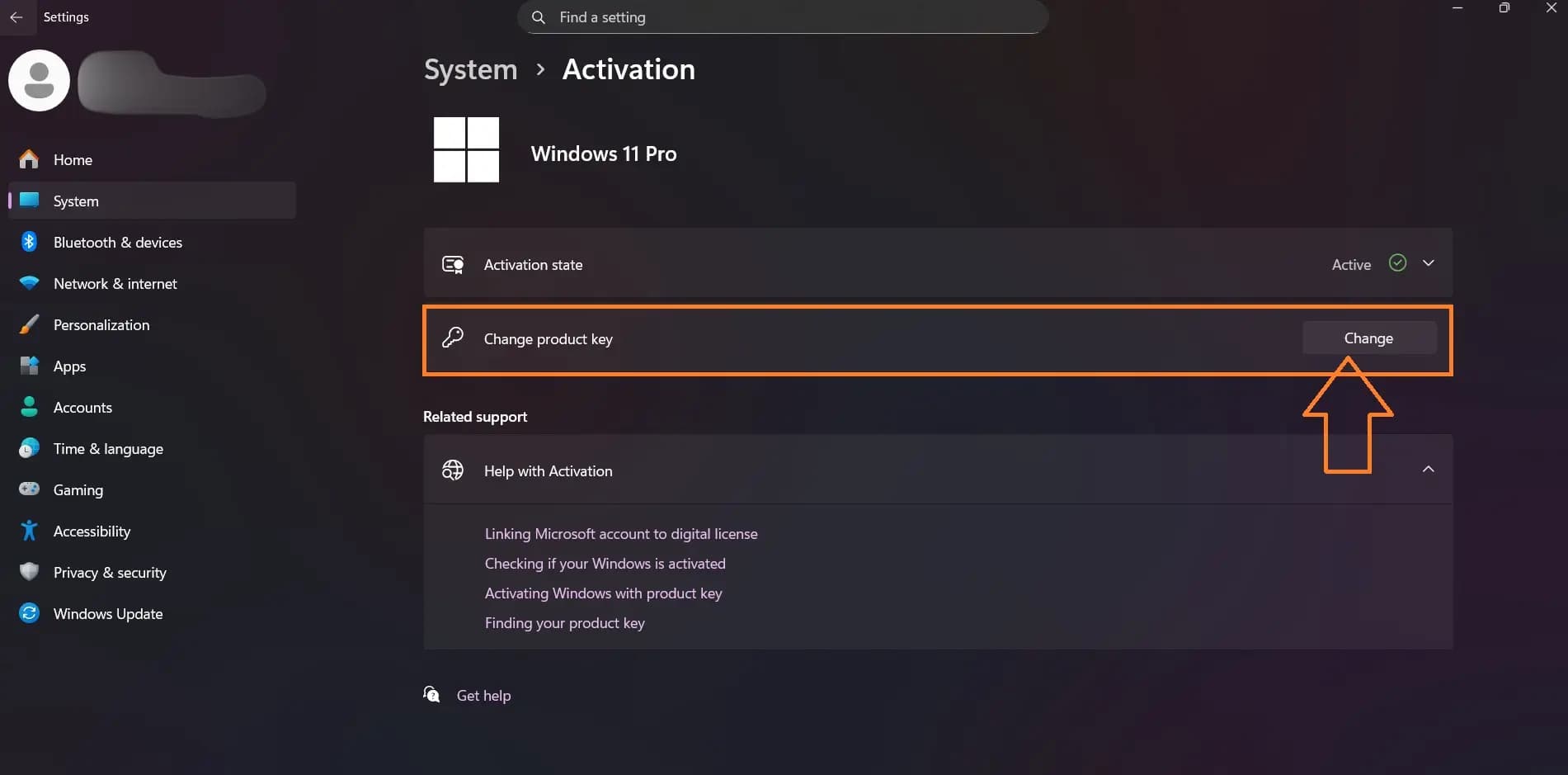
- Go to Settings > System > Activation.
- Next to Change product key, select Change.
- Enter the 25-character key and select Next.
Can't find the key? Microsoft only keeps a record of product keys bought from its own online store. Check your purchase email or the seller's order page, or the COA card for a PC that came with Windows. Microsoft's Find your Windows product key page lists where to look.
Fix 3: Activate by Phone
If you have a valid product key but online activation still fails after a substantial hardware change, Microsoft suggests activating by phone:
- Type SLUI 04 in the search box on the taskbar.
- Select it from the results.
- Follow the on-screen instructions.
Microsoft says Windows 11 Pro EDU and Windows 11 Pro for Workstations must be activated over the internet, so phone activation is not an option on those editions.
Motherboard Replaced Under Warranty or by a Repair Shop
If the PC came with Windows and its manufacturer replaced the motherboard, Microsoft says the PC should reactivate automatically. If it doesn't:
- Look for a COA card. The manufacturer may have provided a card with a 25-character key under a gray scratch-off coating. Enter that key under Change product key.
- Ask the repair shop. If an independent repair shop fixed your PC and you see error 0xC004C003, Microsoft suggests asking them whether the repair requires a new Windows license.
- Contact the manufacturer. For a license that came preinstalled, the manufacturer is the first contact for activation problems.
Windows 11 Not Activated After a BIOS Update
Microsoft's activation help does not mention BIOS or firmware updates, and Microsoft has not published a cause. Users on Microsoft Q&A do report losing activation right after a BIOS update. Treat it like a hardware change:
- Run Troubleshoot and choose I changed hardware on this device recently (Fix 1).
- If you activated with a product key, re-enter it (Fix 2).
- On a laptop or prebuilt PC that came with Windows, contact the manufacturer if neither works.
Skip forum fixes that tell you to run activation scripts or slmgr /rearm. They do not restore a genuine license, and some scripts come from untrusted sites.
Before your next BIOS update: Microsoft lists BIOS or UEFI firmware upgrades among the events that can trigger BitLocker recovery. If your drive is encrypted, find your recovery key first (aka.ms/myrecoverykey for keys saved to a Microsoft account). Microsoft recommends suspending BitLocker for planned firmware upgrades.
After a CPU, RAM, GPU or Drive Upgrade
Microsoft names the motherboard as its example of a significant change and does not say which other parts count. For OEM licenses, its licensing FAQ says you can upgrade or replace every component except the motherboard and keep the license. If Windows does show as not activated after another upgrade, the fixes are the same: the troubleshooter for a linked digital license, or your product key.
After Reinstalling Windows 11
- Digital license: reinstall the same edition that was activated before. When setup asks for a key, choose I don't have a product key. Windows activates online automatically after installation.
- Product key: enter your key during setup, or afterwards under Change product key.
- Wrong edition installed: if you installed Home on a PC licensed for Pro (or the other way round), Windows won't activate. The Activation troubleshooter can find the license and help you install the matching edition.
Some error codes only mean the activation servers were busy after an upgrade, or are temporarily unavailable. Microsoft's advice for those is to wait: select Activate again later, or let Windows activate automatically once the service is back online.
Do You Need a New License After a Motherboard Change?
It depends on the license type and why you replaced the board:
- OEM license, motherboard upgraded: Microsoft's OEM licensing FAQ says upgrading the motherboard creates a new PC, and OEM software cannot be transferred to it. You need a new license.
- OEM license, defective motherboard replaced: no new license is needed, as long as the replacement is the same make and model or the manufacturer's equivalent under its warranty.
- Retail license: it can move to new hardware, as long as it is active on only one device at a time.
If you build or upgrade your own PC often, a retail license is the more flexible choice. Our Windows 11 Pro OEM vs Retail guide compares the two. If you need a new license for a rebuilt PC, you can view the Windows 11 Pro OEM key on PingGM Store.
PingGM Blog is published by PingGM, which also runs PingGM Store, where Windows 11 Pro keys are sold.
Bought your key from PingGM Store? If reactivation fails, contact PingGM Store support ([email protected], replies usually within 24 hours) with the error code. The Store's Refund & Return Policy explains how key issues are handled.
Before Your Next Hardware Change: Checklist
- Check that Windows is activated under Settings > System > Activation.
- Link your Microsoft account to your digital license. Microsoft calls this essential, because it lets you use the troubleshooter after the change. Our Windows 11 Pro activation guide shows how.
- Save your product key if you used one, because Microsoft only keeps records of keys bought from its own online store.
- Have your BitLocker recovery key ready. Microsoft lists a new motherboard with a new TPM, and moving an encrypted drive to another computer, among the BitLocker recovery triggers.
- Note your edition (Home or Pro). It must stay the same for reactivation to work. Our Windows 11 Home vs Pro comparison explains how the two differ.
When to Contact Support
Contact Microsoft support if the troubleshooter and your product key both fail and you bought Windows from Microsoft. Contact the PC manufacturer for a preinstalled license, or the seller for a key you bought elsewhere. Have the error code from the Activation page ready.
Final Thoughts
Losing activation after a hardware change is usually fixable. Use the Activation troubleshooter if your digital license is linked to your Microsoft account, re-enter your product key if you used one, and try phone activation if online activation fails with a valid key. The main case these fixes can't solve is an OEM license after a motherboard upgrade: Microsoft's rules treat that as a new PC that needs its own license.
Sources Checked
- Reactivating Windows after a hardware change — Microsoft Support
- Get help with Windows activation errors — Microsoft Support
- Activate Windows — Microsoft Support
- Find your Windows product key — Microsoft Support
- Licensing FAQ (OEM motherboard replacement) — Microsoft Device Partner Center
- Transfer of OEM licenses — Microsoft Device Partner Center
- Slmgr.vbs options — Microsoft Learn
- BitLocker recovery overview — Microsoft Learn
- Find your BitLocker recovery key — Microsoft Support
- Lost Windows activation after BIOS update (community thread) — Microsoft Q&A