Short answer: To clean install Windows 11, back up your files, save your BitLocker recovery key, check that you know your license and edition, then create a USB drive with Microsoft's Media Creation Tool, boot from it and choose Install Windows 11. After setup, confirm activation, install updates and drivers, then remove unwanted apps through Settings. Use a debloat tool only with care, and never use activation scripts.
This checklist follows Microsoft's own steps for a clean install and adds the parts people often forget, such as the BitLocker key and the edition choice.
A clean install erases the drive you install Windows on: your files, apps and settings. Microsoft calls it an advanced option to use only if you're confident making these changes. Back up first, and make sure you can reactivate Windows before you start.
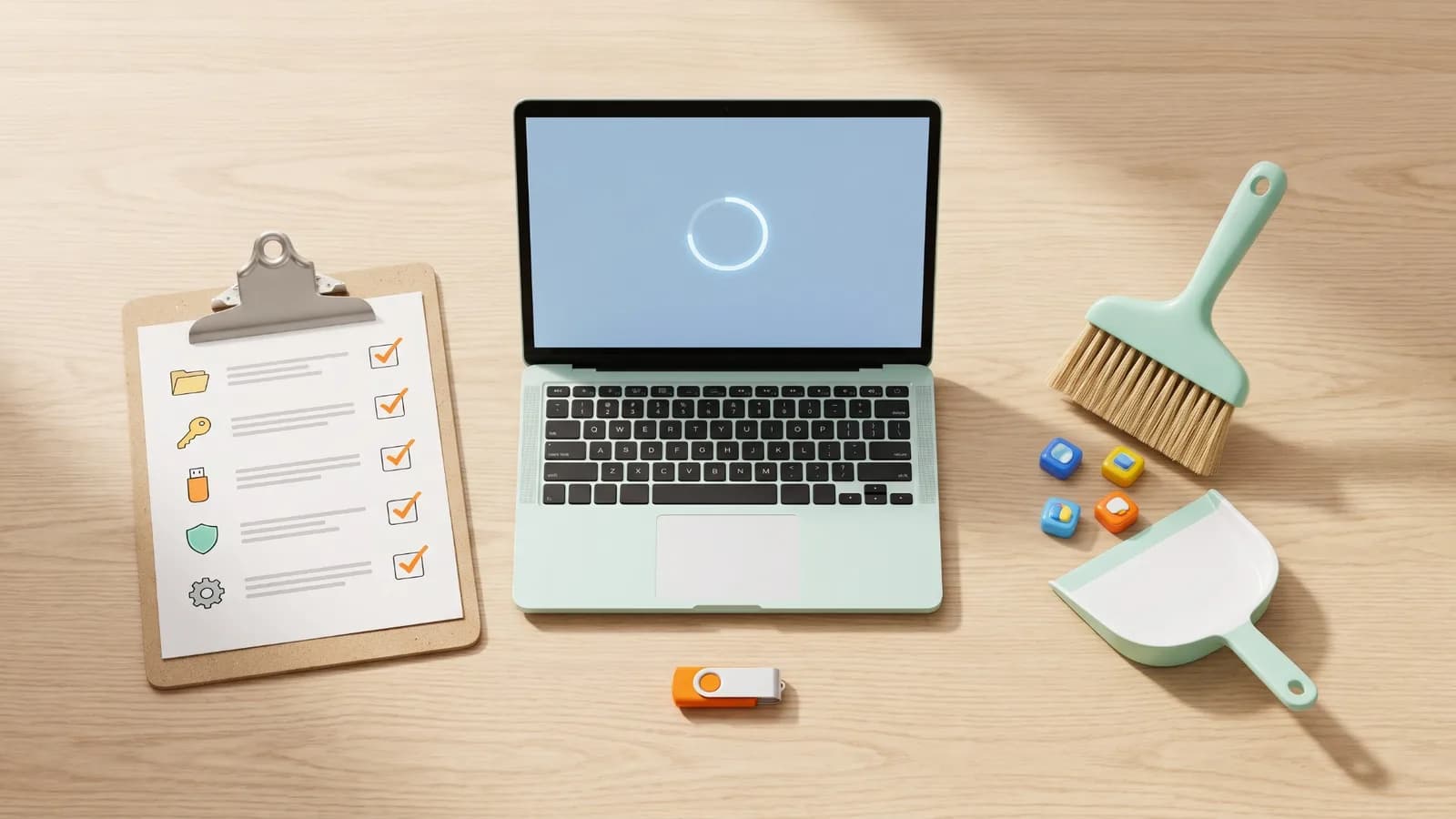
Before You Start: 6 Things to Check
1. Check that the PC meets the Windows 11 requirements
Microsoft's PC Health Check app tells you whether the PC meets the Windows 11 requirements, such as TPM 2.0, Secure Boot and a supported processor. If the PC already runs Windows 11, you can skip this.
2. Back up your files
Microsoft recommends backing up anything you want to keep to an external hard drive, a USB flash drive, or a cloud location such as OneDrive. The Windows Backup app can sync your Desktop, Documents, Pictures, Videos and Music folders to OneDrive, along with app lists and many settings, so you can restore them later by signing in with the same Microsoft account.
Also make a list of the apps you use and their license keys or logins, such as Microsoft 365, Adobe apps, games and VPN apps. A clean install removes them all.
3. Save your BitLocker recovery key
Many Windows 11 PCs use device encryption or BitLocker. Changing boot settings to start from a USB drive can trigger the BitLocker recovery screen, and you also need the key to unlock any other encrypted drives in the PC.
Find your key before you start. If it was saved to your Microsoft account, it is at aka.ms/myrecoverykey. It may also be in a work or school account, on a printout, or on a USB flash drive. Microsoft Support cannot recover a lost BitLocker key for you.
4. Know your license and edition
Open Settings > System > Activation and note two things:
- Edition: Windows 11 Home or Windows 11 Pro. You will need to install the same edition to reactivate.
- Activation state: "Active" with a digital license (often linked to your Microsoft account), or activated with a product key.
Microsoft's advice is clear: if you don't have a product key and your digital license isn't linked to your Microsoft account, don't go ahead. Sign in with your Microsoft account in Windows first so the license is linked.
5. Plan for internet access during setup
Microsoft says Windows 11 Home and Windows 11 Pro for personal use need an internet connection and a Microsoft account during setup. An Ethernet cable is the easiest way. If you use Wi-Fi on a brand-new motherboard or laptop model, it is worth saving the network driver from the manufacturer's support page to a second USB drive, in case setup does not recognize the Wi-Fi adapter.
6. Get a USB drive of at least 8 GB
The Media Creation Tool needs a blank USB flash drive with at least 8 GB. Everything on it will be deleted.
Step 1: Create the Windows 11 USB Drive
On any working Windows PC:
- Go to Microsoft's Download Windows 11 page and download the Media Creation Tool.
- Run it (you need to be an administrator) and select Accept for the license terms.
- Choose the language and edition. Microsoft says you need to choose the same language when you install Windows 11. The 64-bit (x64) version is the only one the tool creates.
- Select USB flash drive, pick your drive and let the tool download Windows and create the media.
The download includes all the main editions. Your product key or digital license decides which edition activates.
Arm laptop? On a PC with an Arm processor, such as a Snapdragon laptop, use Microsoft's Download Windows 11 Arm64 page instead. It offers an ISO file rather than the Media Creation Tool, and Microsoft says the USB drive may need drivers from the PC maker to boot. Check your processor type under Settings > System > About.
Step 2: Boot From the USB Drive
Plug the USB drive into the PC you want to reinstall and start the PC from it. Most PCs have a boot menu key you press right after powering on, such as F12, F11, F8 or Esc, but it varies, so check the PC or motherboard manufacturer's support page. When the PC starts from the USB drive, Windows 11 Setup opens.
Step 3: Install Windows 11
After you choose your language and keyboard, Microsoft's clean install steps look like this:
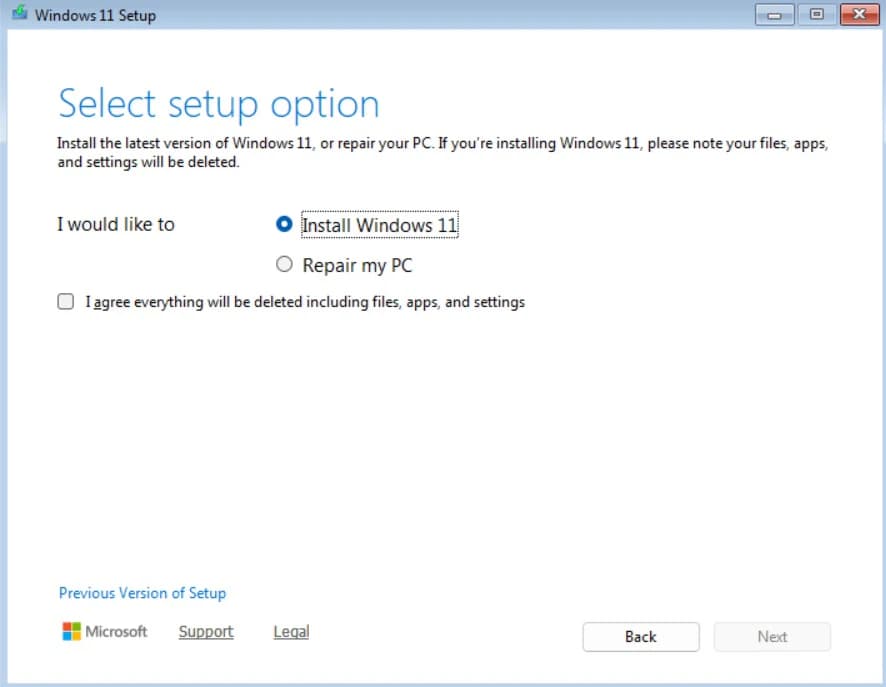
- In Select setup option, choose Install Windows 11, tick I agree everything will be deleted including files, apps, and settings, and select Next.
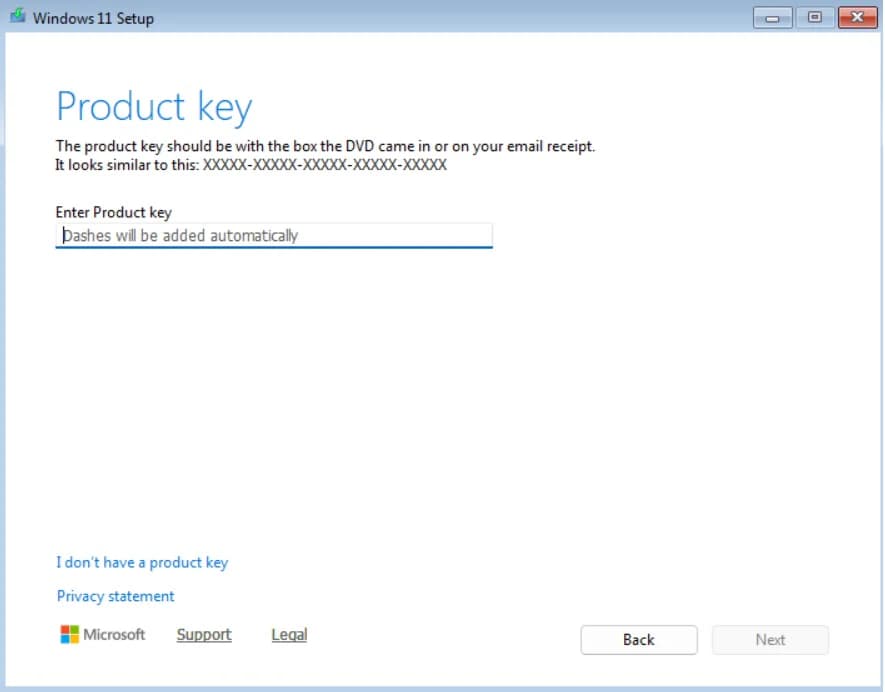
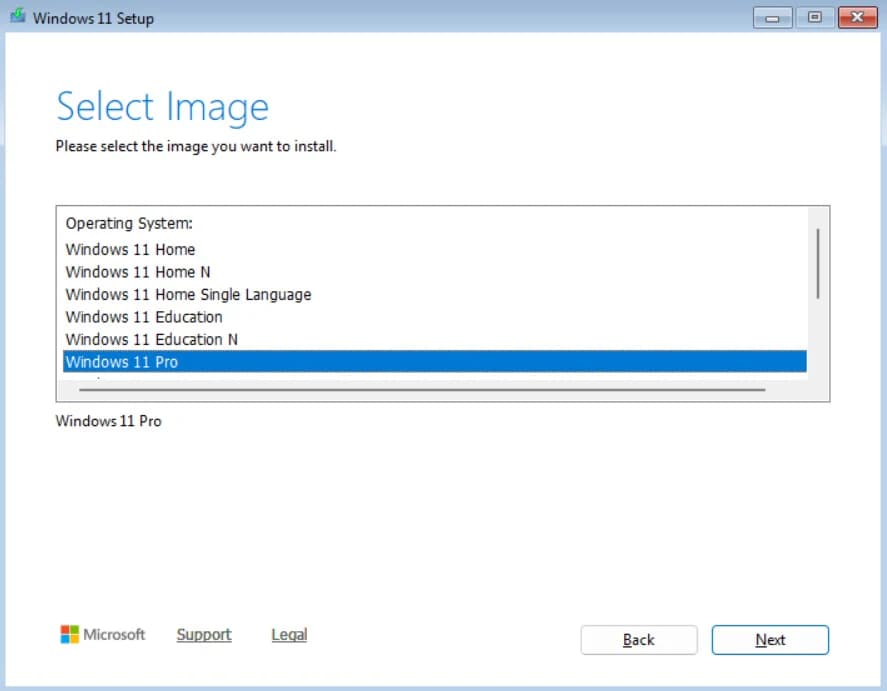
- If a Product key screen appears, select I don't have a product key (if the PC has a digital license), then choose the edition that was installed before in Select Image. If you have a product key, you can enter it here instead. The screen may not appear if a key is stored in the PC's firmware.
- In Applicable notices and license terms, select Accept.
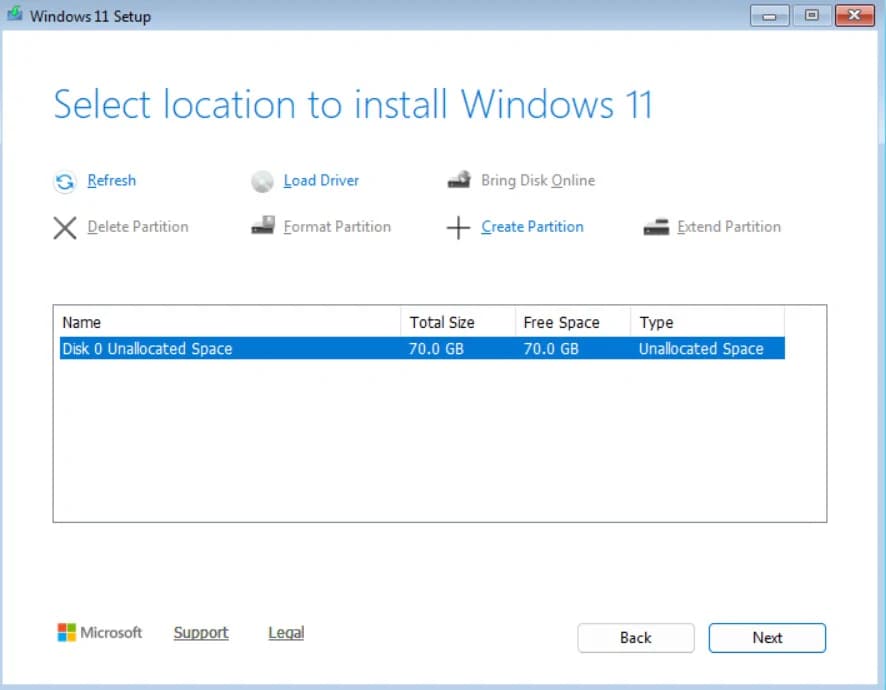
- In Select location to install Windows 11, delete the partitions on Disk 0, then select the unallocated space. Microsoft warns not to change or delete partitions on any other disk.
- In Ready to install, check that it says Keep nothing, then select Install. The PC restarts several times.
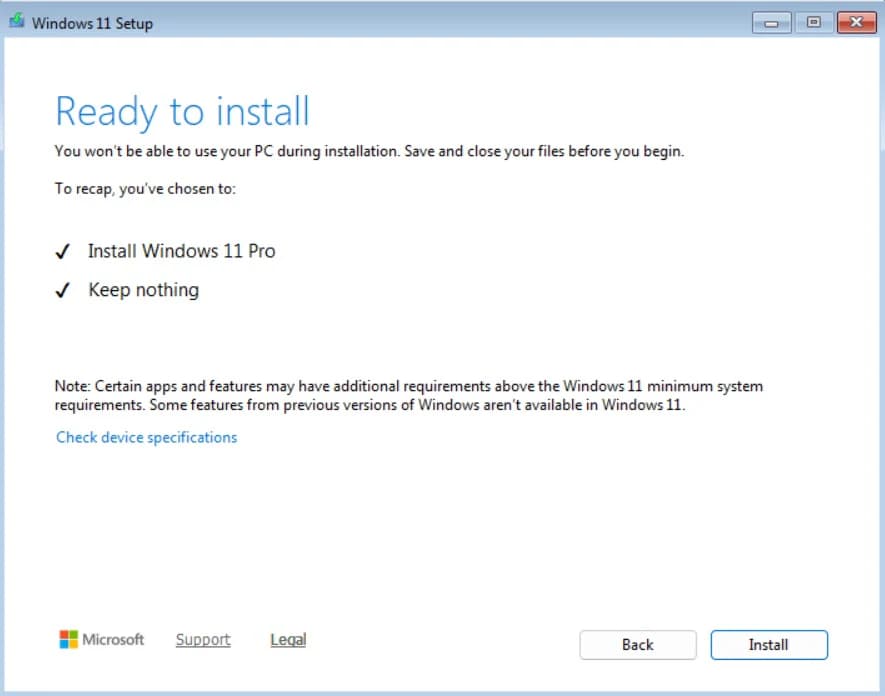
Older Windows 11 install media, and the Previous Version of Setup link on the first screen, use the older setup. There it asks Which type of installation do you want? Choose Custom: Install Windows only (advanced), then pick the drive as in step 4.
Installing on a new SSD? Choose the new drive's unallocated space in step 4. If the PC has other drives with data on them, disconnect them during setup if you can, so you can't delete the wrong partitions by mistake.
Step 4: Finish Setup
After the restarts, Windows asks for your region, keyboard and network, then asks you to sign in. Sign in with the Microsoft account that is linked to your digital license. Microsoft says this lets the digital license and product key be applied to the device.
If you made a Windows Backup, setup offers to restore it. Restoring brings back your folders, settings and app pins. If you want a fresh start without your old settings, choose to set up as a new PC and copy only your files back later.
Step 5: Check Activation
Go to Settings > System > Activation. Microsoft says activation usually happens automatically once the PC is online. You should see that Windows is activated with a digital license or a product key.
If Windows is not activated:
- Make sure you installed the same edition as before (Home or Pro).
- Run the Activation troubleshooter on the same page, or enter your product key with Change product key.
- If you changed the motherboard or other major hardware, see our guide to Windows 11 not activated after a hardware change.
Our Windows 11 Pro activation guide covers the full steps and common error codes.
Step 6: Install Updates and Drivers
- Open Settings > Windows Update and select Check for updates. Install everything and restart, then check again until nothing new appears.
- Windows Update installs drivers for most hardware automatically. Extra driver updates can appear under Windows Update > Advanced options > Optional updates. Install these only for hardware that isn't working properly.
- For the graphics card, and for the chipset on a desktop you built yourself, get the latest drivers from the manufacturer's website (NVIDIA, AMD, Intel, or your PC or motherboard maker).
- Open Device Manager (right-click Start) and look for devices with a warning icon. Those still need a driver.
Step 7: Remove Bloatware Safely
Start with the tools built into Windows. They are safe, and you can reinstall anything later from the Microsoft Store.
Uninstall apps you don't want
Microsoft's two ways to uninstall an app:
- From Start: go to Start > All apps, right-click the app and select Uninstall.
- From Settings: go to Settings > Apps > Installed apps, open the More menu (three dots) next to the app and select Uninstall.
Some apps are built into Windows and can't be uninstalled. Leave those alone.
Turn off startup apps and suggestions
- Startup apps: Settings > Apps > Startup lets you stop apps from starting with Windows.
- Start menu suggestions: in Settings > Personalization > Start, turn off recommendations for tips, shortcuts and new apps.
- Tips and ads: in Settings > Privacy & security > General, turn off personalized ads through the advertising ID and suggested content in Settings. In Settings > System > Notifications, under additional settings, turn off tips and suggestions.
- Widgets: turn the Widgets button off in Settings > Personalization > Taskbar.
Menu names can differ slightly between Windows 11 versions, but each of these is a normal Windows setting you can turn back on.
What not to remove
Some parts of Windows look like extras but other things depend on them. Don't remove:
- Microsoft Store and App Installer, which install and update many apps
- Windows Security (Microsoft Defender) and Windows Update
- Microsoft Edge WebView2 Runtime, which many apps use to display content
- Microsoft Visual C++ Redistributable packages, which many programs and games need
- Driver control panels for your graphics card, audio or touchpad
Debloat tools: use with care
Tools such as Chris Titus Tech's WinUtil and Win11Debloat are popular open-source projects (both MIT-licensed on GitHub) that remove preinstalled apps and change many settings at once. They can save time, but they are not made or supported by Microsoft, and they run as an administrator because they make system-wide changes.
If you use one:
- Create a restore point first. Search Start for Create a restore point, select your system drive, select Configure to turn on System Protection if it's off, then select Create.
- Update your Store apps. Open Microsoft Store, select Library > Get updates and let the updates finish. Several debloat guides suggest this so a pending app update doesn't bring back an app you just removed.
- Get the tool only from its official GitHub page. Copies and "pre-configured" versions on other sites may contain malware.
- Read what each option does and use the default or standard settings. Skip any tweak you don't understand.
- Never turn off Windows Update, Microsoft Defender or the Microsoft Store, and don't remove the items in the list above.
Never use "activation" scripts or KMS activators found online. They are not a genuine way to activate Windows, they break Microsoft's license terms, and they are a common way malware gets onto PCs.
Step 8: Save a Clean Restore Point
When Windows is updated, activated and set up the way you like it, create a restore point (see above) and run Windows Backup. If something goes wrong later, you can go back to this clean state instead of reinstalling again.
Clean Install vs Reset This PC
You don't always need a USB drive. Windows has a built-in option:
- Reset this PC: go to Settings > System > Recovery and select Reset PC. Choose Remove everything for a fresh start, then Cloud download to get a new copy of Windows with the latest updates, or Local reinstall to use the files already on the PC.
- Clean install from USB: gives you full control over the drive and its partitions, works when Windows won't start, and is the way to install Windows on a new SSD.
If Windows still works and you only want a fresh start on the same drive, Reset this PC is the simpler choice.
Need a Windows 11 License?
A clean install doesn't need a new license if the PC was already activated: the digital license comes back when you install the same edition. You need a license if you are installing Windows on a PC you built yourself, on a PC that never had Windows, or if you want to move from Home to Pro.
If you buy a key, check the license type. Retail licenses can move to a new PC later. OEM licenses cost less, are intended for new PCs from a manufacturer or system builder, and stay with the first PC they activate on. Our Windows 11 Pro OEM vs Retail guide explains the difference, our Home vs Pro comparison helps you choose the edition, and you can view the Windows 11 Pro OEM key on PingGM Store.
PingGM Blog is published by PingGM, which also runs PingGM Store, where Windows 11 Pro keys are sold.
Final Thoughts
A clean install is the most thorough way to start fresh with Windows 11. The install itself is the easy part. Most problems come from the steps around it: a missing backup, a lost BitLocker key, the wrong edition, or a debloat tweak that went too far. Follow the checklist in order, keep changes to what Windows offers in Settings, and save a restore point when you're done.
Sources Checked
- Reinstall Windows (clean installation steps) — Microsoft Support
- Download Windows 11 (Media Creation Tool) — Microsoft
- Download Windows 11 Arm64 — Microsoft
- Fix problems with apps from Microsoft Store (Library > Get updates) — Microsoft Support
- Windows 11 specifications and system requirements — Microsoft
- Back up your Windows PC (Windows Backup) — Microsoft Support
- Find your BitLocker recovery key — Microsoft Support
- Update drivers through Device Manager — Microsoft Support
- Uninstall or remove apps and programs in Windows — Microsoft Support
- Reset your PC — Microsoft Support
- WinUtil (Chris Titus Tech) — GitHub
- Win11Debloat — GitHub